Showing posts with label Passwords. Show all posts
Showing posts with label Passwords. Show all posts
Saturday, August 18, 2012
How to Remove BIOS Password!

OK, there is some methods to clean BIOS password, I'll show you follow me & read carefully.
The computer motherboard there is a piece called (BIOS / CMOS ) contain information stored where the default settings for the BIOS manufacturer,and you as a user of the device or an engineer or technician want to edit some of the available settings on the BIOS (such as a password when log into the BIOS, change the date and time, boot priority from hard disk or CD, eliminate the use of certain ports such as USB port - LAN - printer port... etc) these adjustments saved in the "CMOS" and retains them even if electricity cable has been removed, but these settings disappear in 3 cases:
1 - Removing CMOS battery from Motherboard for a period of 15 to 30 minutes.
2 - The end of battery life, it has the number (CR2032) you'll find it in hardware stores or in watchmaker.
3 - Using "Jumper" to clear CMOS modifications in specific position.
IMPORTANT NOTES:
When we want to disconnect the CMOS battery and remove it from motherboard or we want to deal with motherboard in general you should do the following:
1 - Unplug the power cable from the computer ( from the back of the device permanently).
2 - Unplug the screen cable which is connected with the computer (because it delivers some shipments through the screen cable to motherboard ).
3 - Separate any cable may be plugged into the device by electricity (such as printer - scanner ... etc).
4 - before you open the compute touch any external metal object ((non-computer)) to discharge static charge from your body because it may cause damage to some pieces of the device.
5 - It's strongly recommended that you wear a rubber gloves to make sure you don't transfer any shipment to device parts.
Method n°=1 ( removing the CMOS battery )
 |
| removing CMOS battery |
2 - Now remove the battery & leave it outside the motherboard for 15 - 30 minutes (and the device is disconnected from all power cables).
3 -put the battery back into the motherboard and turn-on the computer, you 'll have no BIOS password!.
Method n°=2 ( using jumper )
a jumper is a short length of conductor used to close a break in, or bypass part of, an electrical circuit.
1 -find the jumper on the motherboard, it's labeled as CLEAR, , JCMOS1, CLR, CLRPWD, PASSWD,CLEAR CMOS, PASSWORD,PWD,PSWD .
 |
| jumper |
3 - when you do that turn-on the computer, you'll find that the BIOS password was cleaned.
4 - now turn-off the computer and switch the jumper to the original position.
Method n°=3 ( using software )
1 -
 Download the software "PC CMOS Cleaner 2.0" (official) for free.
 |
| PC CMOS Cleaner 2.0 |
3 - put the CD/DVD in the drive and reboot your computer, then press any key to boot from the CD/DVD drive.
4 - the software 'll be opened, step1: try possible password for your BIOS ( you need to write them in a paper ), if it does't work click on Next for step2.
5- step 2: rest the BIOS to default status
choose "choice 1" first ( to keep date and time), if it does't work try "choice 2" , the BIOS password 'll be erased.
that was the 3 popular ways to remove BIOS password, if you need any help or question i'm here,just leave a comment!

Wednesday, June 29, 2011
Tip to change the Administrator Password!

If you can't change the password of the Administrator you can use this tip:
you must be logged on as an administrator
1 – Right-click on My Computer
2 - Click on Manage
3 – In the left side choose Local Users and Groups
4 - In the right side choose Users
5 – You will see the users including the Administrator
6 – Right-click on Administrator –> Set Password...
7 – It will popup an alert telling you that this method may lose Administrator account some other passwords and Data.
Click Proceed
8 – Type in the box your New Password and confirm it .
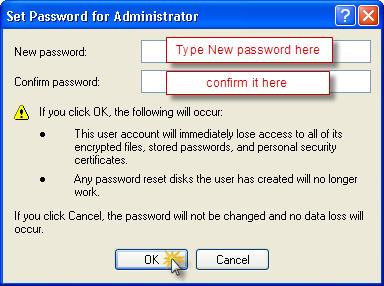
9 – Click OK .
You will find that the Administrator password has changed!
Subscribe to:
Posts (Atom)