Thursday, July 28, 2011
close 3 gaps on windows xp now!

Windows operating system still suffers from some gaps, Especially on the XP system, widely adopted.
These gaps can be exploited by hackers to access your computers!.
Come all to stand like a dam from this gaps and protect our Windows XP from the hack.
These gaps can be exploited by hackers to access your computers!.
Come all to stand like a dam from this gaps and protect our Windows XP from the hack.
First gap
Is one of the dangerous gates and spywares, To close them just do the following:
2 – go to File Types tab.
3 – Search for Windows Script Host Settings File.
4 – Click Delete.
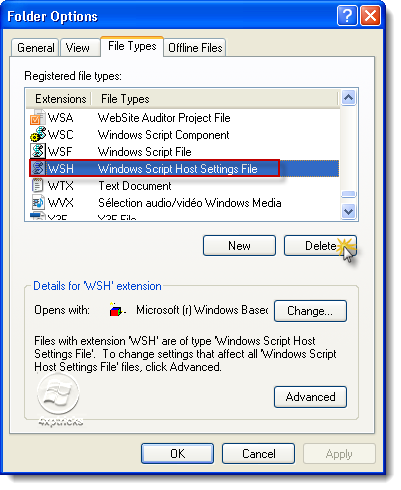
5 – The next windows click on Yes.
Second gap
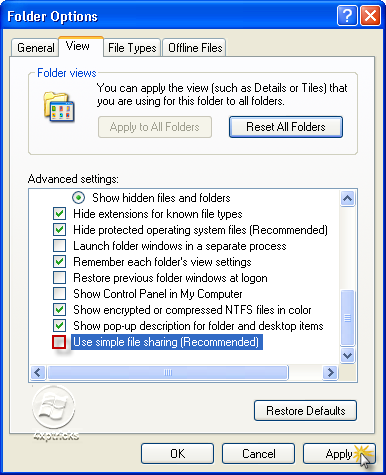
It is (simple file sharing)
1 - Always stay on the same window, But this time we go to the View tab.
2 – Search for Use Simple File Sharing (Recommended).
3 – remove the tick , Then click Apply like the picture:
Third gap
1 - Start –> Control Panel –> Internet Options.2 – go to Advanced tab.
3 – Make a tick on Do net save encrypted pages to disk (see the picture).
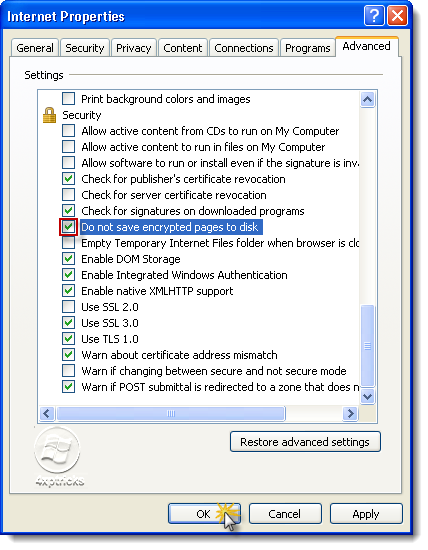
4 – Click OK.
Now we have closed the three gaps, which poses some danger to our devices!
Thanks for reading

Sunday, July 3, 2011
Some DLL files missed?, Use this tip!

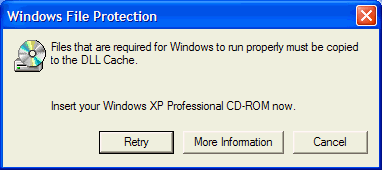
If you regularly encounter errors (such as warnings of missing DLL files or programs do not load) and you think that some part of Windows XP, you can check your system files to ensure that they are in good condition.
Foremost get Windows XP CD/DVD into the CD/DVD Drive
The Tip:
1 - Click on Start
2 - Click on Run
3 - then type this command :
2 - Click on Run
3 - then type this command :
sfc /scannow
Wait until the process is complete
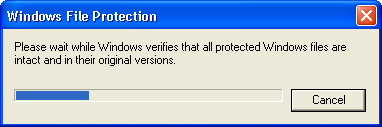
This will check all your Windows system files to see if they have been edited or changed.
If they have, it should be able to replace them with backups, but if it can not find them on your hard drive so it will be necessary to copy from your Windows XP CD or DVD.
If you have some problems with the tip I'm here!
Saturday, July 2, 2011
Add Copy To and Move To to right click!

Do you want to move your files to any folder by one click?, yeah! just one right click and your files transferred.
Let's do this from the Registry Editor.
Steps:
1 - Click on Start.
2 - Click on Run.
3 - then type this command to open the Registry Editor:
Let's do this from the Registry Editor.
Steps:
1 - Click on Start.
2 - Click on Run.
3 - then type this command to open the Registry Editor:
regedit
4 - click on OK.
5 - Then Follow the path in the Registry Editor:
HKEY_CLASSES_ROOT –> AllFilesystemObjects –> shellex –> ContextMenuHandlers |
New –> Key
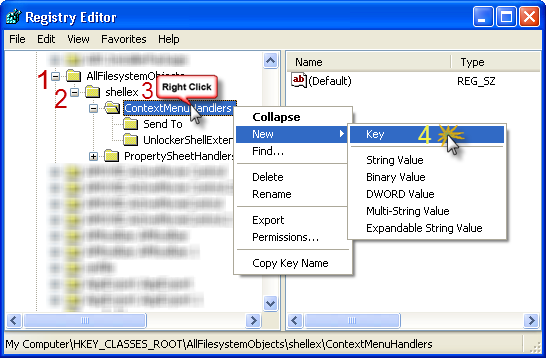
7 – Give it this name:
Copy To
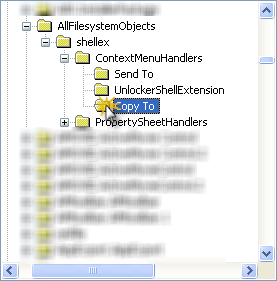
8 – Click on Copy to folder, in right side Double-Click on (Default)
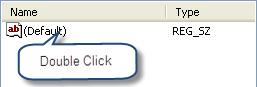
9 – Give it this Value:
{C2FBB630-2971-11d1-A18C-00C04FD75D13}
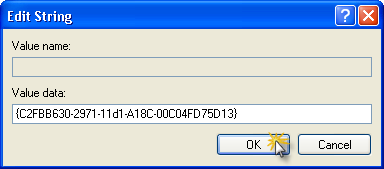
10 – Click OK.
Congratulations! Copy to have been added to your computer!.
-------------------------------------------------------------------------------------------------------------
We return to the same path (step 5), to add Move To option.
1 - Right-Click on ContextMenuHandlers folder then:
New –> Key
2– Give it this name:
Move To
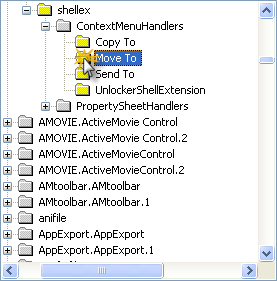
3– Click on Move To folder, in the right side Double-Click on (Default).
4– Give it this Value:
{C2FBB631-2971-11D1-A18C-00C04FD75D13}
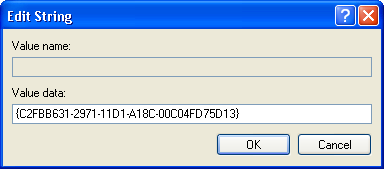
5– Click OK.
Congratulations! Copy to have been added to your computer.
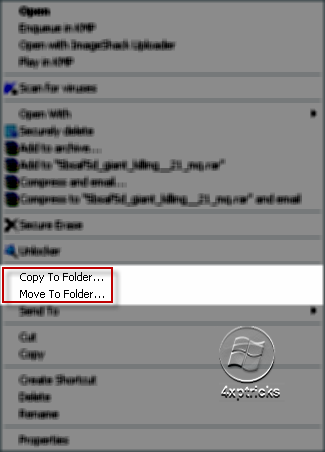
Close the Registry Editor, now right click on anything you want to move or copy it, you will notice the two options in the drop menu.
Any question? I'm here!
Wednesday, June 29, 2011
Tip to change the Administrator Password!

If you can't change the password of the Administrator you can use this tip:
you must be logged on as an administrator
1 – Right-click on My Computer
2 - Click on Manage
3 – In the left side choose Local Users and Groups
2 - Click on Manage
3 – In the left side choose Local Users and Groups
4 - In the right side choose Users
5 – You will see the users including the Administrator
6 – Right-click on Administrator –> Set Password...
7 – It will popup an alert telling you that this method may lose Administrator account some other passwords and Data.
Click Proceed
8 – Type in the box your New Password and confirm it .
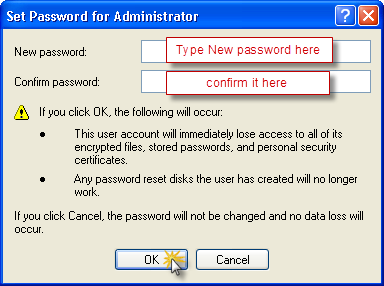
9 – Click OK .
You will find that the Administrator password has changed!
Sunday, June 26, 2011
Add Safe Mode to Windows Boot Menu

When in trouble on Windows, you need to boot the computer into the “Safe Mode”, where you have to boot your device and pounce on the "F8" key ... I will show a simple way to add the Safe Mode to the Windows boot menu, you can easily and simply select it while starting your computer.
Saturday, June 25, 2011
Change the Default Path of Installation to your folder!

Our tip today will be "How to change path of the Default software installation".
Usually the default path is "C: \ Program Files".
The way to change the path as follows:
Usually the default path is "C: \ Program Files".
The way to change the path as follows:
Subscribe to:
Posts (Atom)